What Are Squads?
Squads in DevStats are custom groups of developers that allow you to track engineering metrics at the team level. You can use squads to represent:
- Product teams
- Cross-functional groups
- Sub-teams within a department
- Any custom grouping that fits your organization
Squads give you a flexible way to filter, compare, and analyze metrics for specific groups of developers, improving visibility and decision-making at the team level.
Add Your First Squad
- Go to the Squads section.
- Click Add Squad.
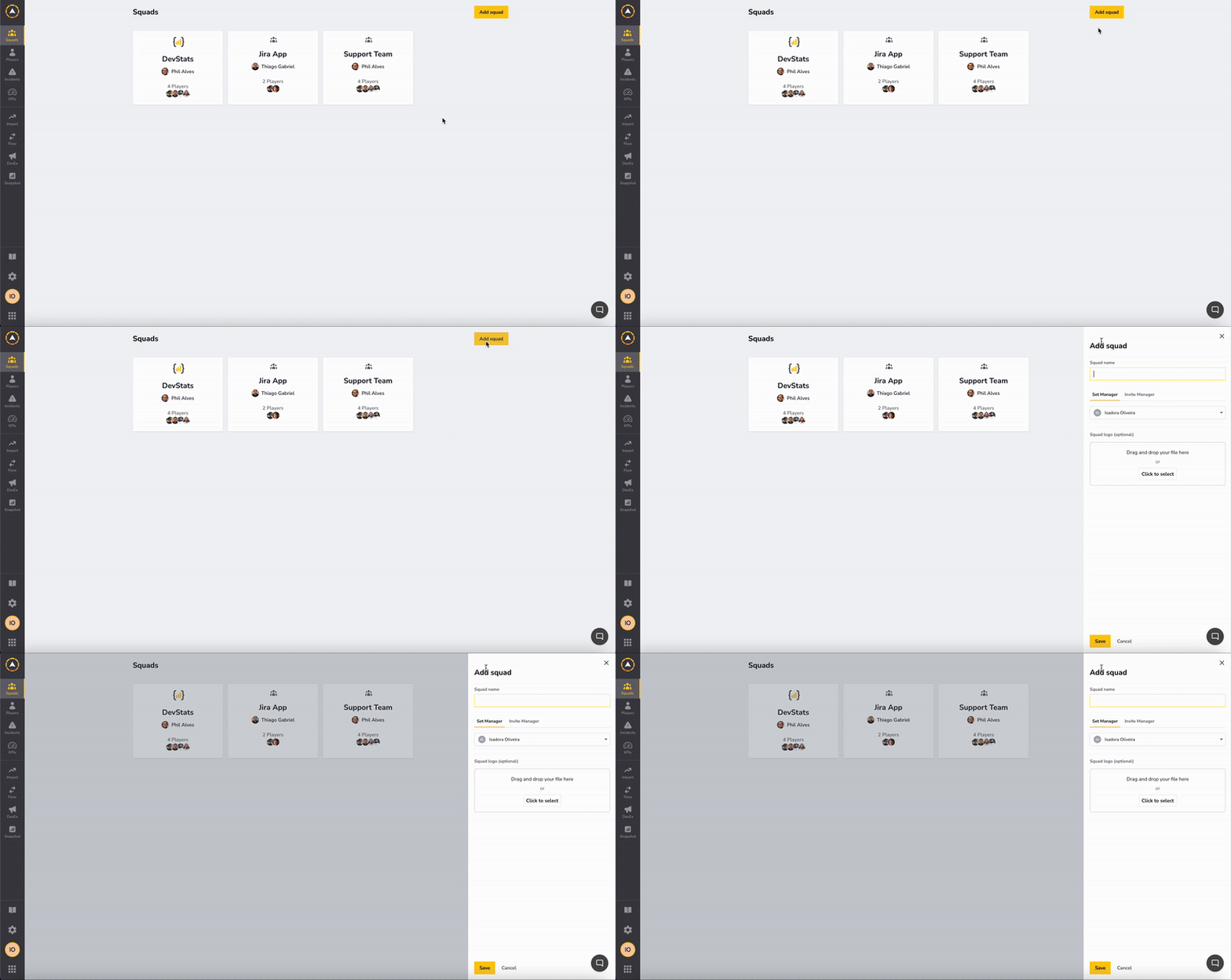
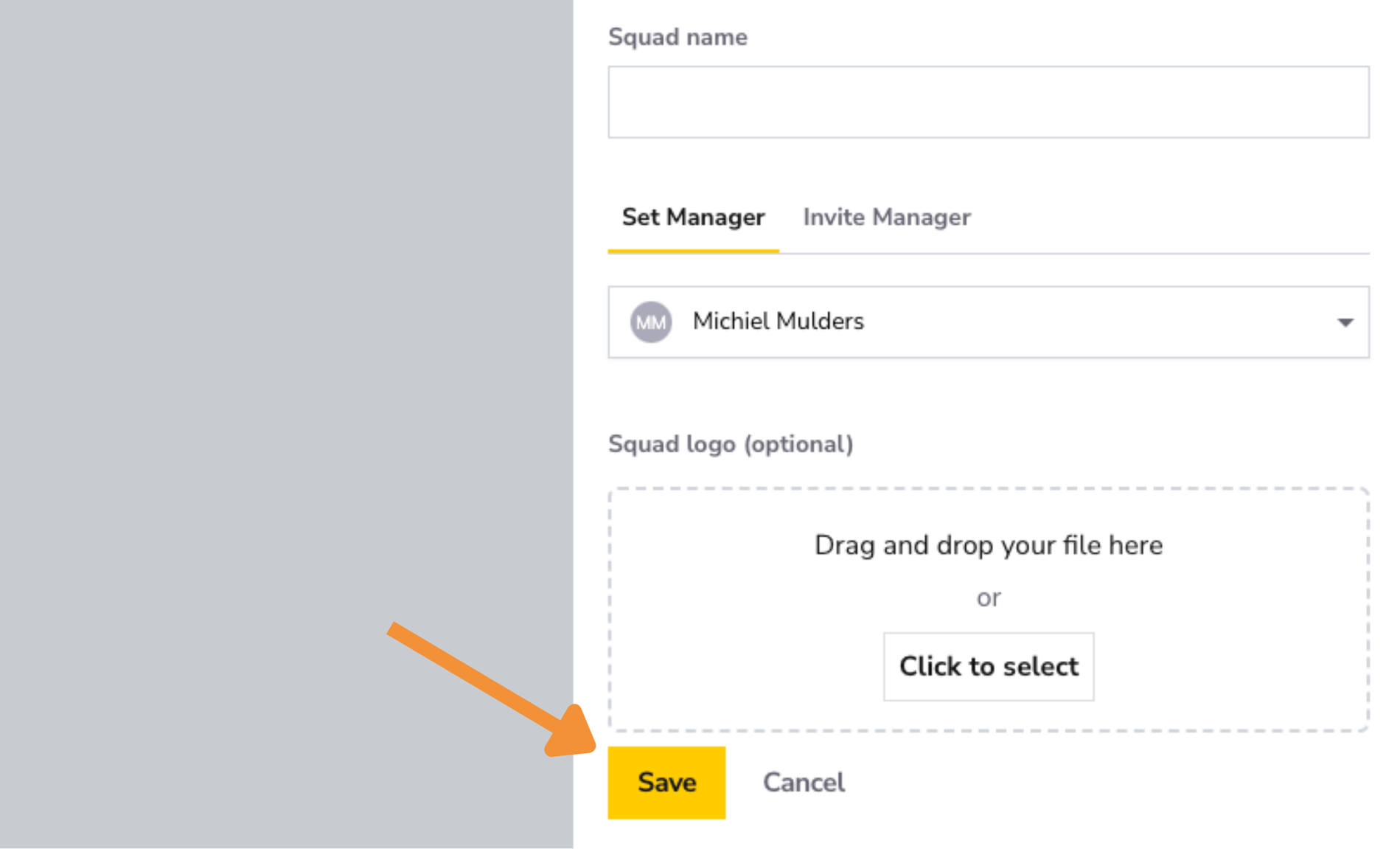
Then, provide the following details for your squad:
- Squad Name: Enter the name of your squad.
- Manager: Assign an existing manager or invite someone to take this role.
- Squad Logo: Upload a logo for your squad (optional, but helps with visual identification).
What's next? Add Integrations
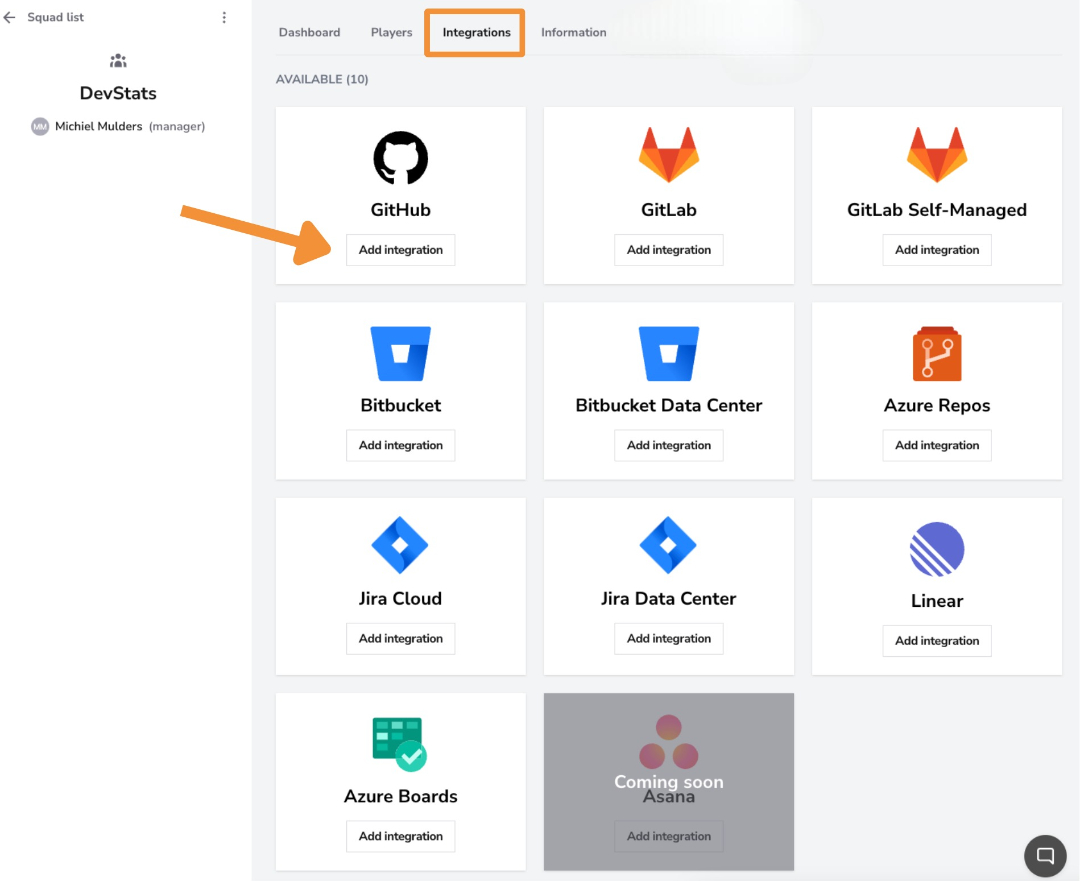
With the squad created, open it and navigate to the Integrations tab. Here, you'll see all available integrations that allow DevStats to collect data for your squad.
You can connect:
- Version control systems, such as Git repositories
- Project management tools
All the integrations are in the settings under Squad Integrations. Select an integration you want to add, and a quick guide will explain how to do this.
After saving the integration, DevStats will begin processing your data.
Processing time varies depending on the size and history of your repository and may take anywhere from one hour to more than a day.
FAQ
How to Change a Player from One Squad to Another?
A player can be in two or more squads simultaneously!
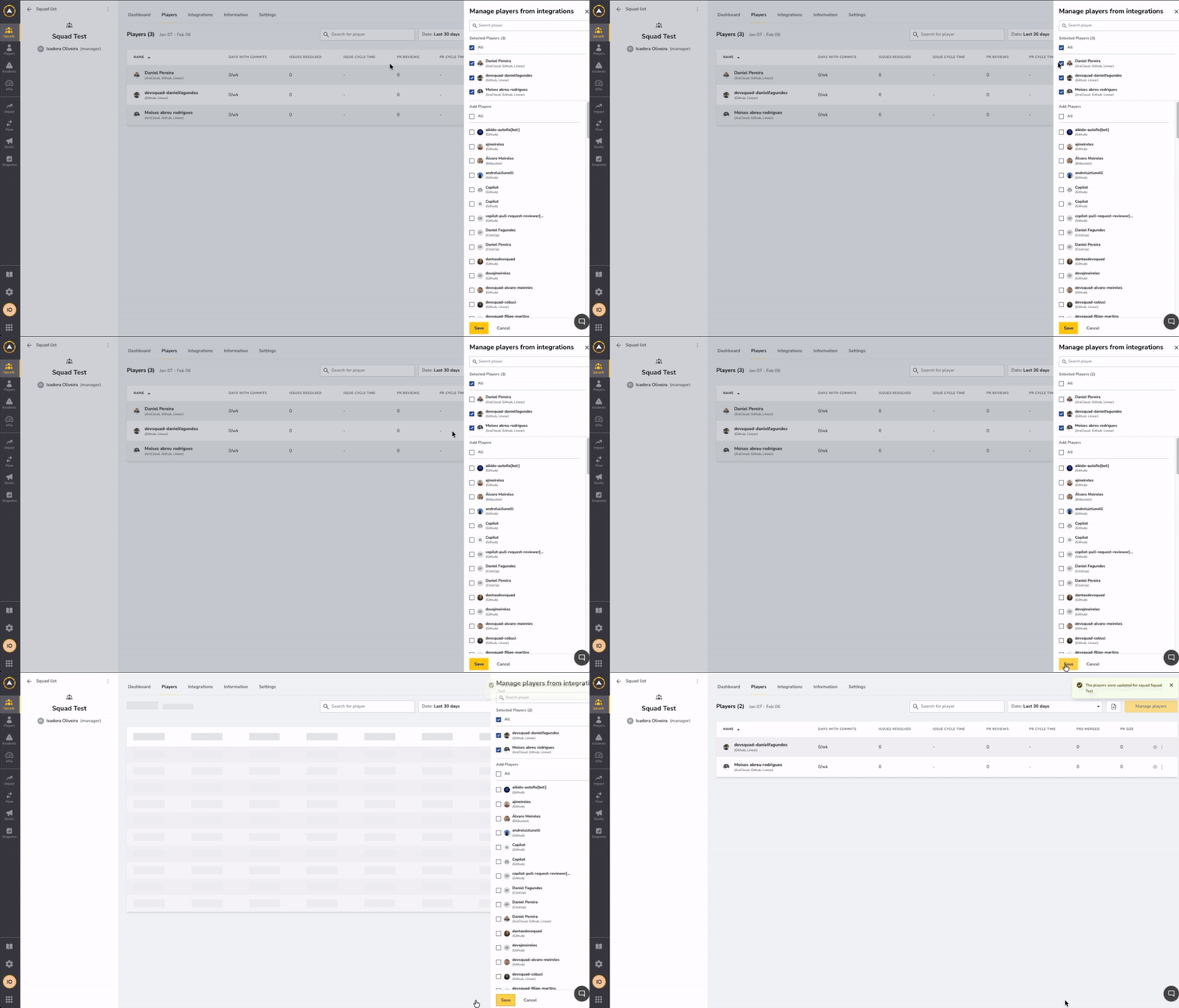
Step 1: Access the Squad Players Page
- Navigate to the squad the player is currently on
- Click "Manage players" button
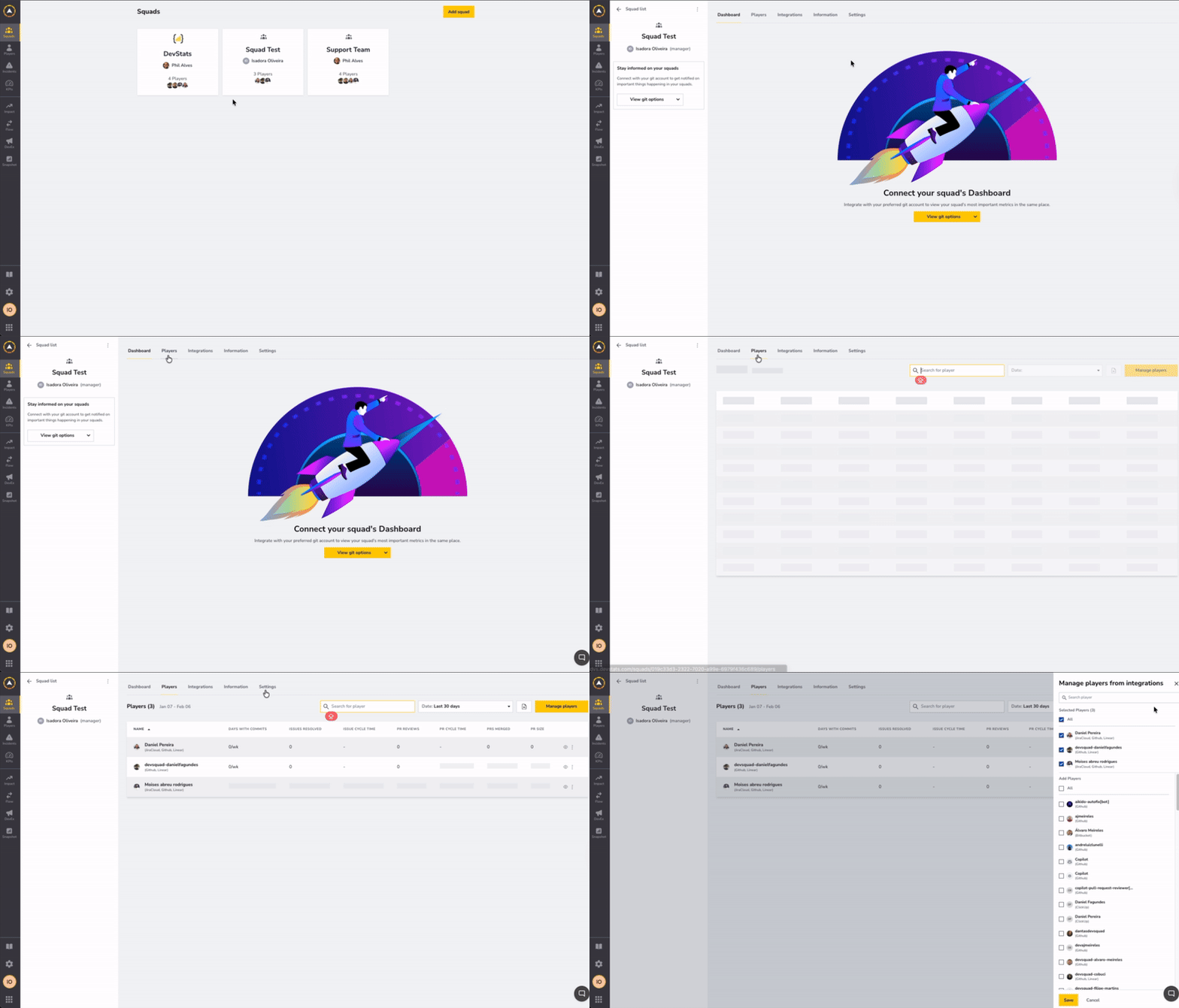
Step 2: Remove Player from Current Squad
- In the manage players sidebar, search and uncheck the player you want to move
- Click "Save" to remove them from the current squad
Step 3: Add Player to the New Squad
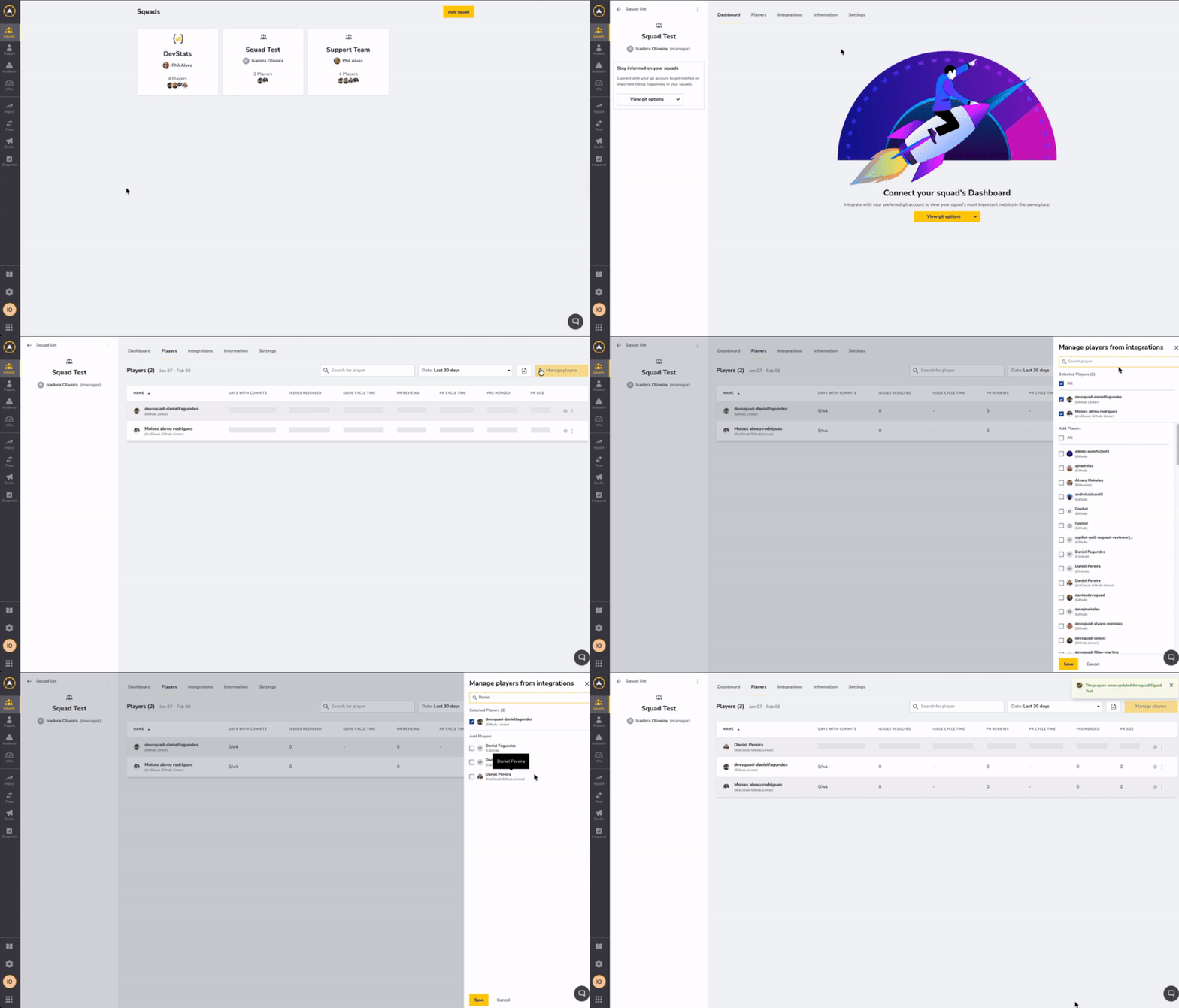
- Navigate to the target squad's players page
- Click "Manage players"
- Search and check the player you want to add
- Click "Save" to add them to the new squad
How to Retrieve or Add a Player That Did Not Appear During the Integration Process?
Scenario 1: Player is in a New Repository That Hasn't Been Integrated
The player may be new and their repository hasn't been integrated yet.
Solution: Integrate the new repository to make the player available.
Scenario 2: Player is Disabled
Check Player Status
The player might be disabled in the squad-collaborator pivot table.
Re-enable the Player
- Navigate to the squad.
- Click on the Players tab.
- Select Manage players and search for the disabled player.
- Check the player.
- Click Save.
Scenario 3: Repository Has Expired Credentials
The repository the player is working in has expired credentials and isn't showing up.
Solution: Navigate to Settings → Repositories and click on the shield icon to reauthorize the squad repository.
