What is the Daily WIP Feature?
TheDaily Work in Progress (WIP) Feature provides a real-time view of all tasks being worked on daily. With visual insights into daily task trends and a detailed list of active tasks, this dashboard helps teams stay focused, manage workloads, and identify bottlenecks. It’s particularly useful for daily standup meetings, ensuring that discussions remain actionable and aligned with team goals.
Daily WIP Dashboard
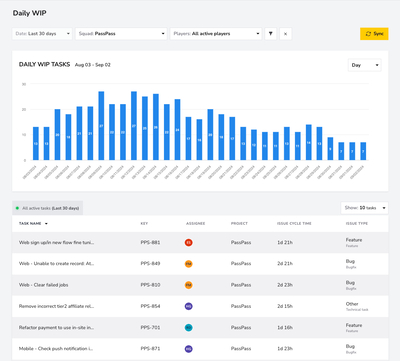
The Daily WIP Dashboard provides key metrics on tasks currently in progress, offering a clear view of how workloads are distributed across the team. It helps teams identify trends, manage workloads, and address bottlenecks to maintain steady progress.
- Daily WIP Tasks Chart: What it shows:A bar chart displaying the number of tasks in progress each day over a selected time frame.Why it matters: This chart helps you quickly spot trends in active tasks and understand how workload levels fluctuate over time. Sudden spikes or declines may indicate potential bottlenecks or uneven task distribution.
- Task List:A detailed table providing insights into all active tasks, including: Task Name:A brief description of the task.Key:The unique identifier for each task.Assignee:The team member responsible for the task.Project:The project to which the task belongs.Issue Cycle Time:The duration the task has been in progress.Issue Type: The type of task, such as feature, bug, or technical task.
By combining the visual insights from the chart with the granular details in the task list, the Daily WIP Dashboard empowers teams to track task progress, identify inefficiencies, and optimize workloads effectively.
Filters
Use the Squad Filter to view Daily WIP metrics for individual squads. If you want a broader overview of all teams, select the "All" filter to see the breakdown across all squads at once.

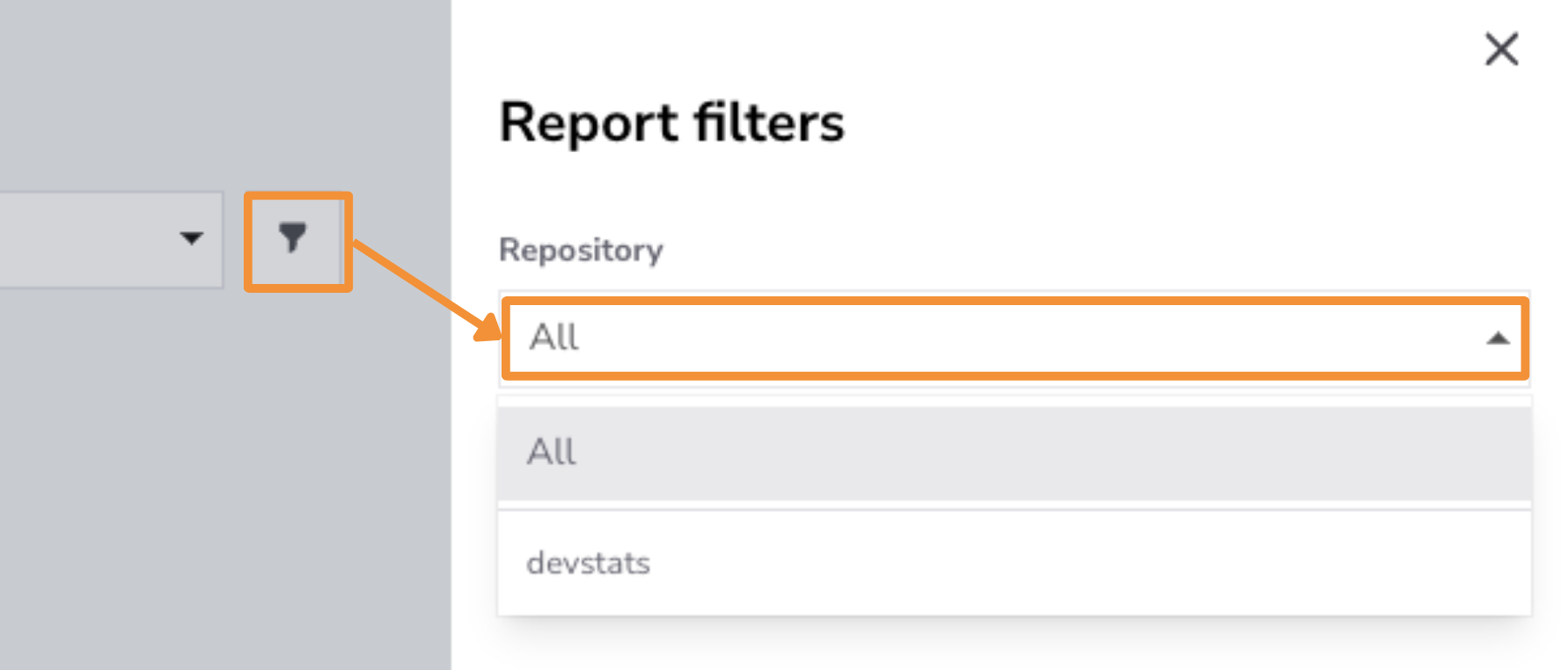
The Date Filter allows you to view data for specific time periods. You can filter for the last month, quarter, or 365 days. If you need more granular control, you can filter by a custom date range.
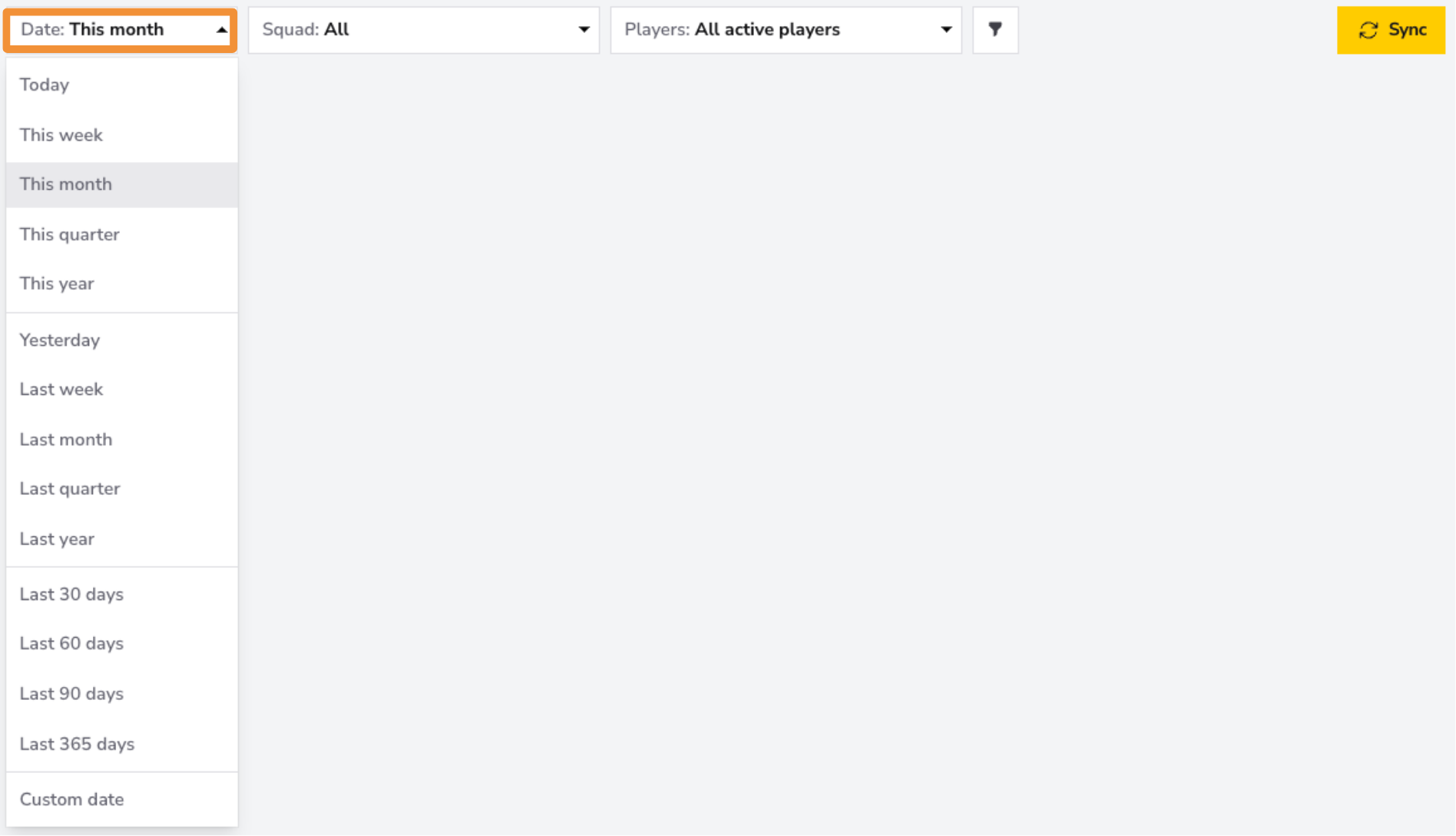
Use the Players Filter to focus on individual team members or a specific group within your squad. You can select one member for a detailed view, a group of team members if they form a sub-squad, or all team members for an overview of the entire squad's Daily WIP metrics.
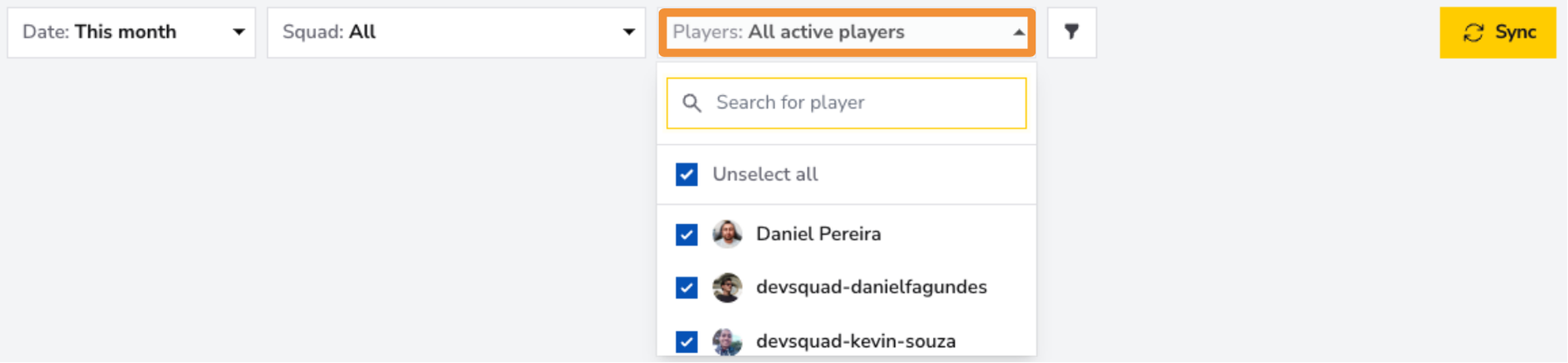
Use the Repository Filter to focus on specific repositories or view Daily WIP metrics across all repositories.
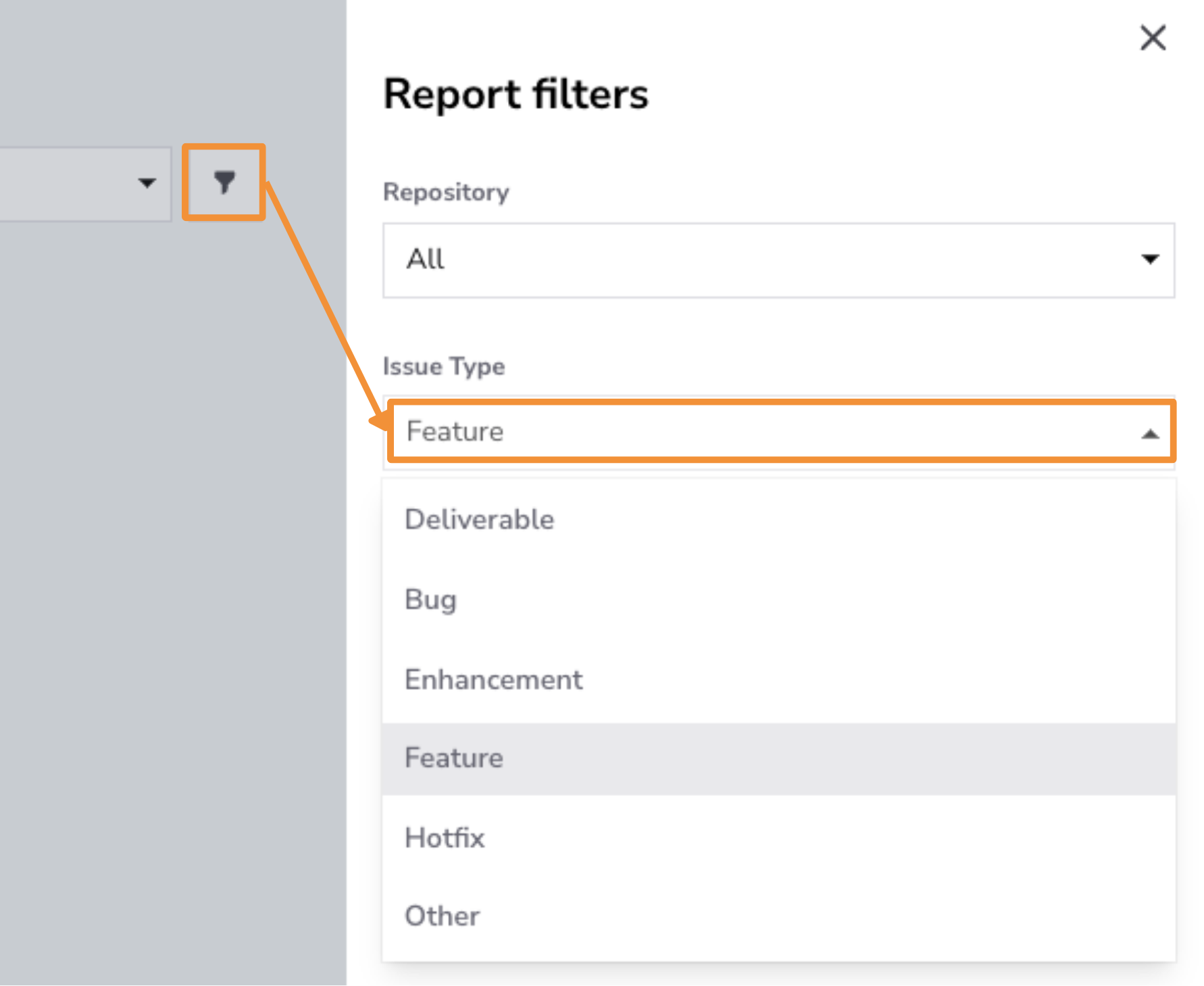
Use the Issue Type Filter to analyze Daily WIP metrics for specific types of tasks, such as Features, Bugs, Enhancements, or Hotfixes. This filter helps teams focus on the types of work currently in progress, offering insights into how resources are allocated and whether priorities align with project goals.
Tracking WIP by issue type allows teams to identify trends in critical areas, such as hotfixes or bug fixes, ensuring they are completed efficiently to maintain workflow balance and product stability.
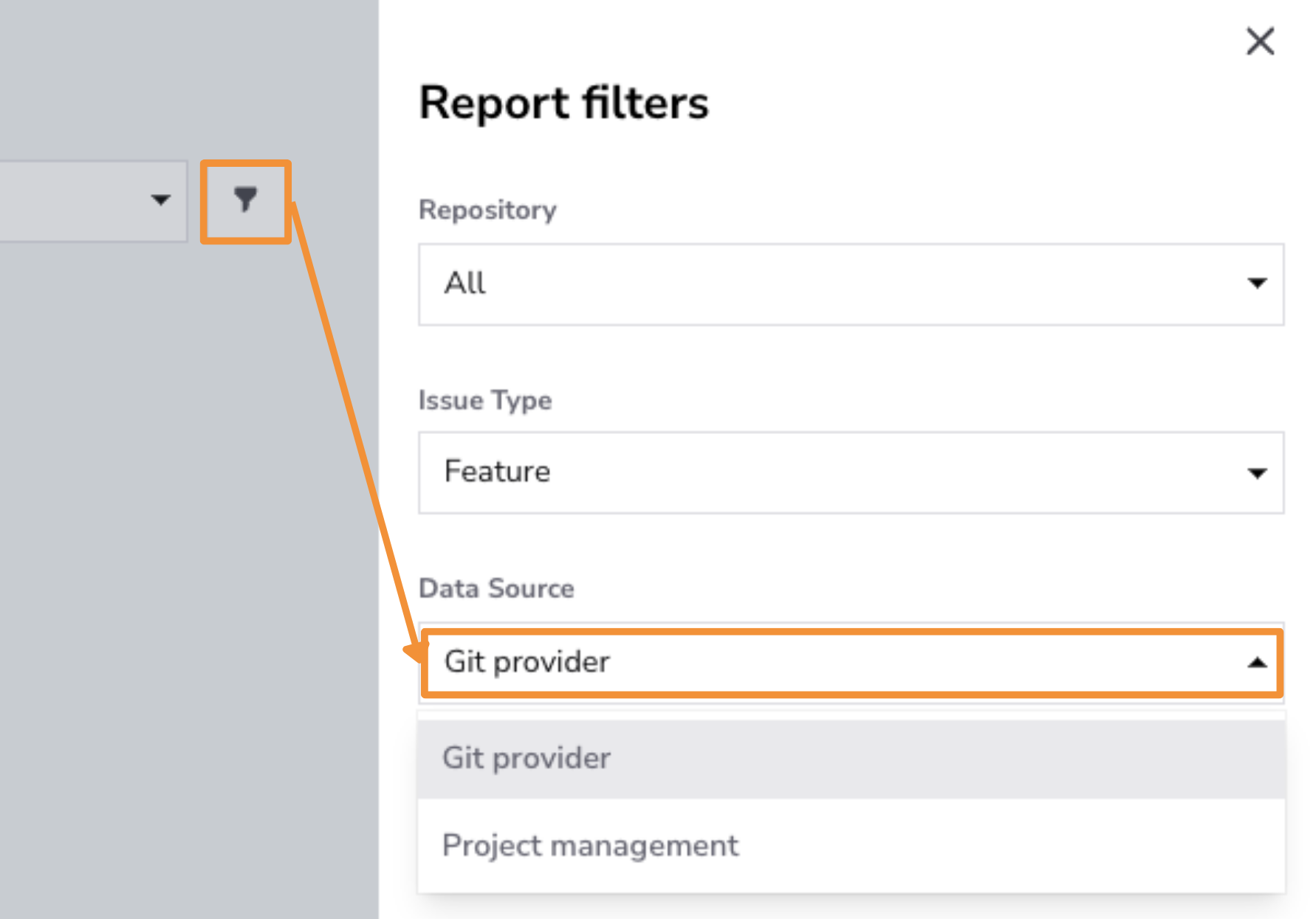
Use the Data Source Filter to refine deploy metrics based on the data's origin, whether from a Git provider or a project management tool.
- Git provider: Filters deploy metrics sourced from version control systems, such as code commits and pull requests.
- Project management: Filters deploy metrics sourced from project management tools.
Controls
In this report, Controls offers Chart Settings only: enable Trendline or Regression line to inspect patterns in the chart. Statistical Measure and PR Cycle Time Stages are not available; these options do not change how the report metrics are calculated.
Click the adjustments button on the Controls bar and select Save after choosing your options. See the Controls guide for details.
Best Practices for Daily Standups
To make your daily standups more effective, use the Daily WIP Dashboard as a guiding tool to streamline discussions and ensure the team stays aligned. Follow these best practices:
- Keep Standups Short and Focused: Limit standups to 15 minutes or less. Focus on tasks currently in progress, identify blockers, and outline the next steps to keep the meeting concise and action-oriented.
- Use Visuals to Aid Discussion: Incorporate the Daily WIP Dashboard to provide a clear, real-time overview of active tasks. This makes it easier for team members to quickly grasp the current workload and identify tasks that need attention.
- Encourage Open Communication: Foster an environment where team members feel comfortable sharing blockers or asking for help. Use standups to promote collaboration and ensure everyone is aligned on priorities.
By following these practices and leveraging the dashboard, you can run efficient, focused standups that keep your team on track.