What are Channels?
The Channels page is where you configure the destinations where DevStats delivers AI Reports, notifications, and other messages. Instead of checking DevStats manually, you can have reports and alerts sent directly to the tools your team already uses.
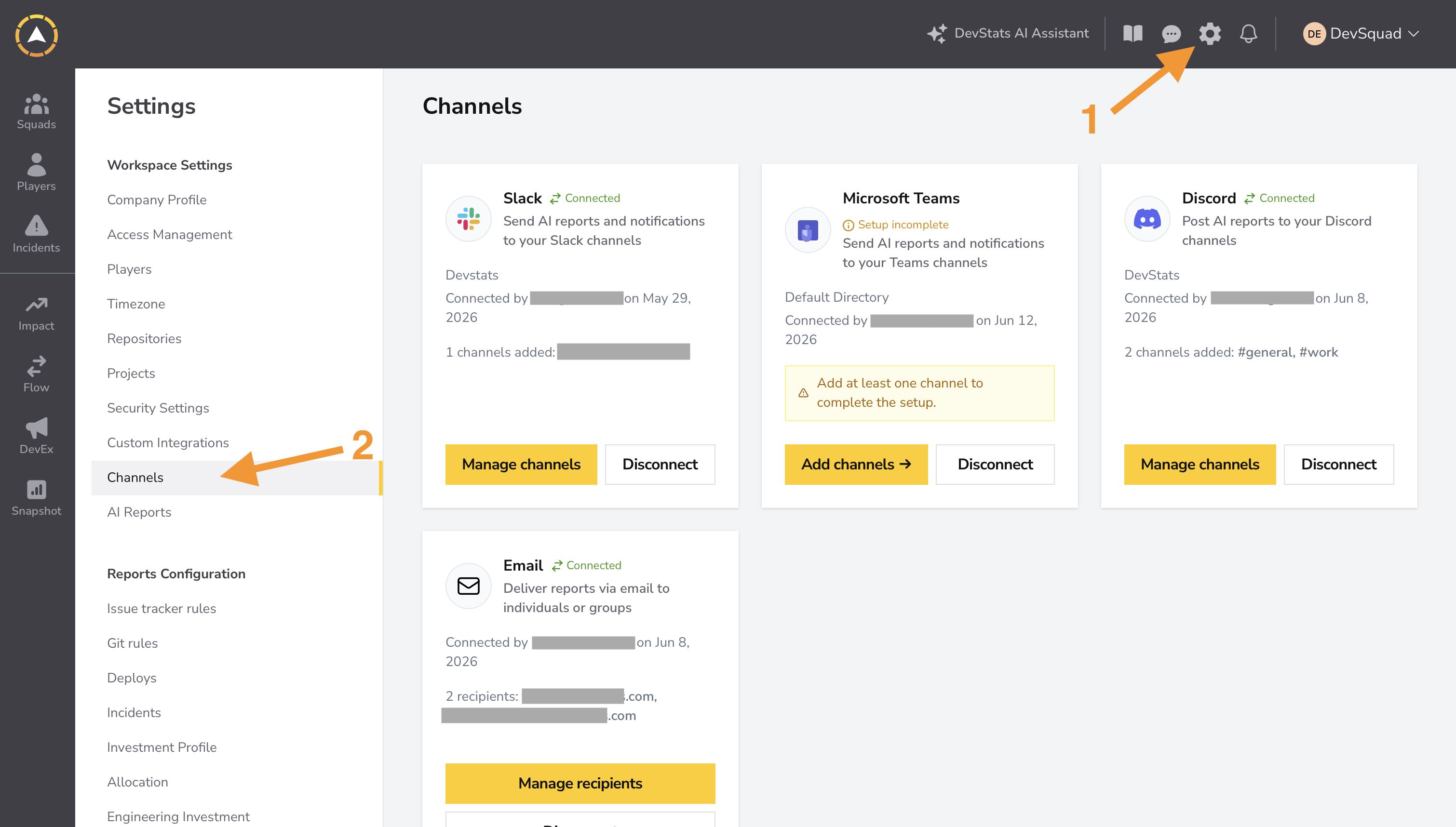
You can find Channels under Settings > Workspace Settings > Channels.
Accessing Channels
Navigate to Settings > Workspace Settings > Channels. You need workspace admin permissions to view and manage channel connections.
Understanding channel cards
Each delivery method appears as a card on the Channels page. Cards display:
| Element | Description |
|---|---|
| Integration name and icon | Identifies the delivery method (Slack, Teams, Discord, Email). |
| Status | Shows Connected or Setup incomplete. |
| Description | Brief explanation of what the integration does. |
| Workspace context | The connected workspace, directory, server, or integration name. |
| Connection metadata | Who connected it and when. |
| Configured destinations | Channel names, email addresses, or recipient lists. |
| Primary action | Manage channels, Add channels, or Manage recipients. |
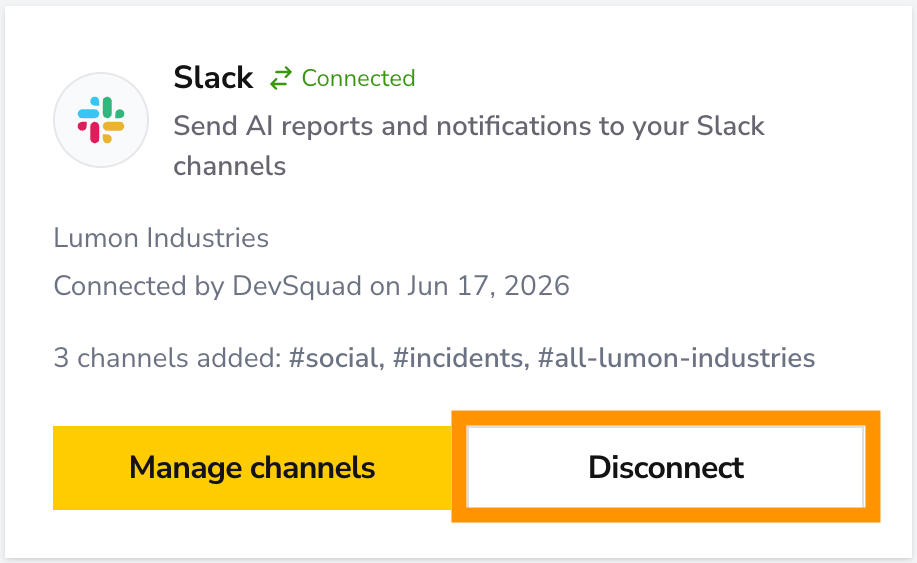
| Secondary action | Disconnect to remove the connection. |
Supported delivery methods
Slack
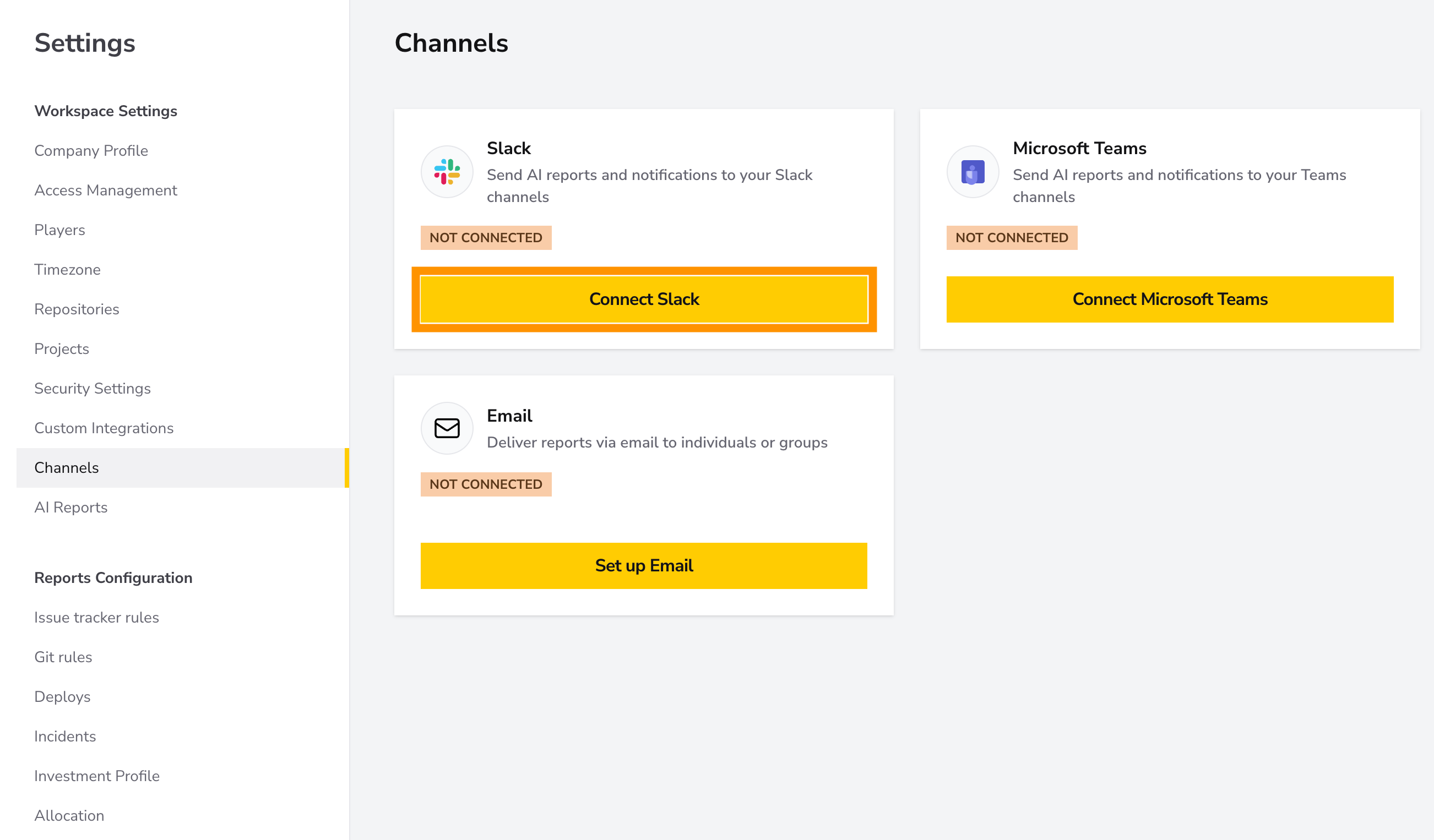
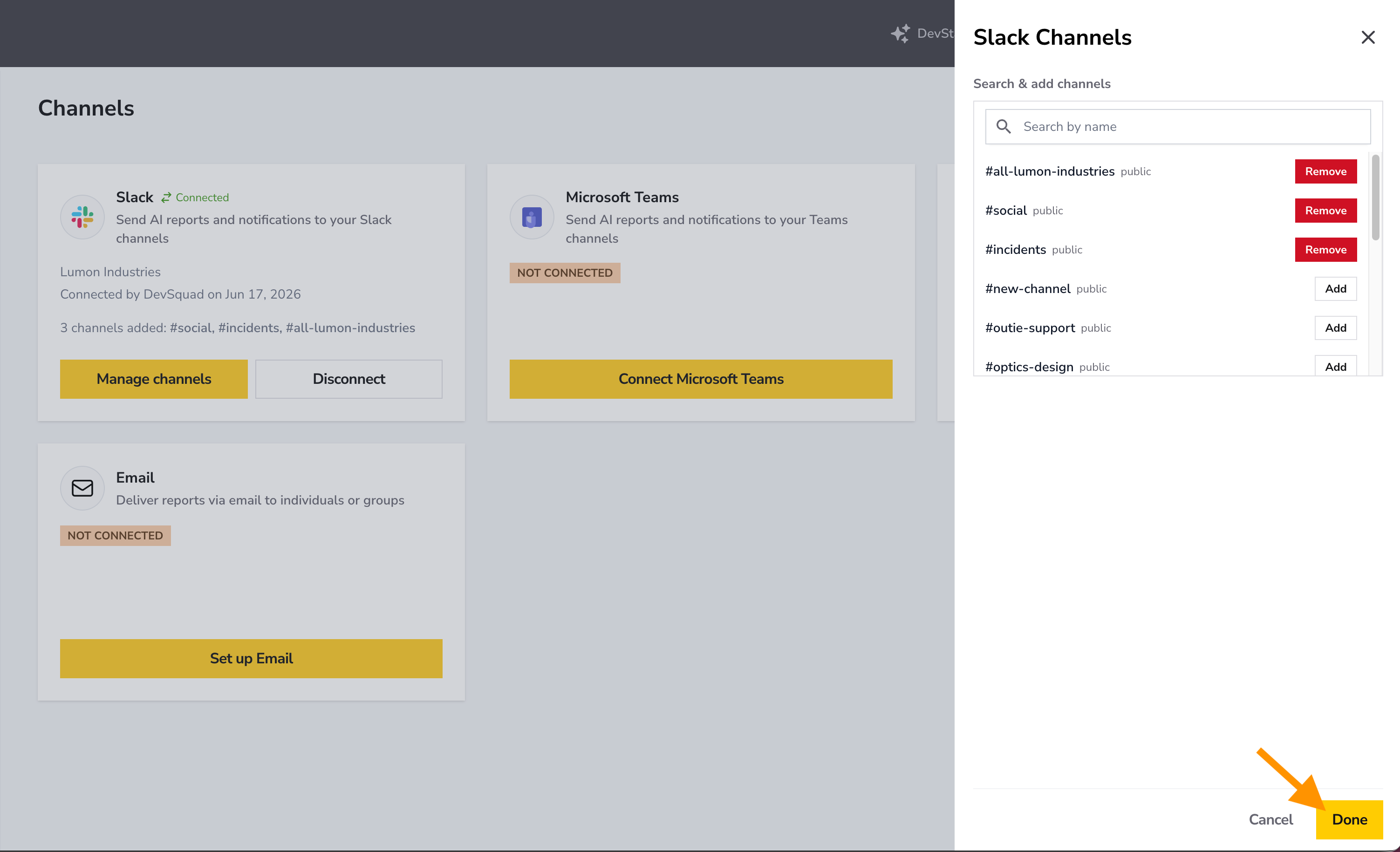
Connect your Slack workspace to send AI reports and notifications to selected channels.
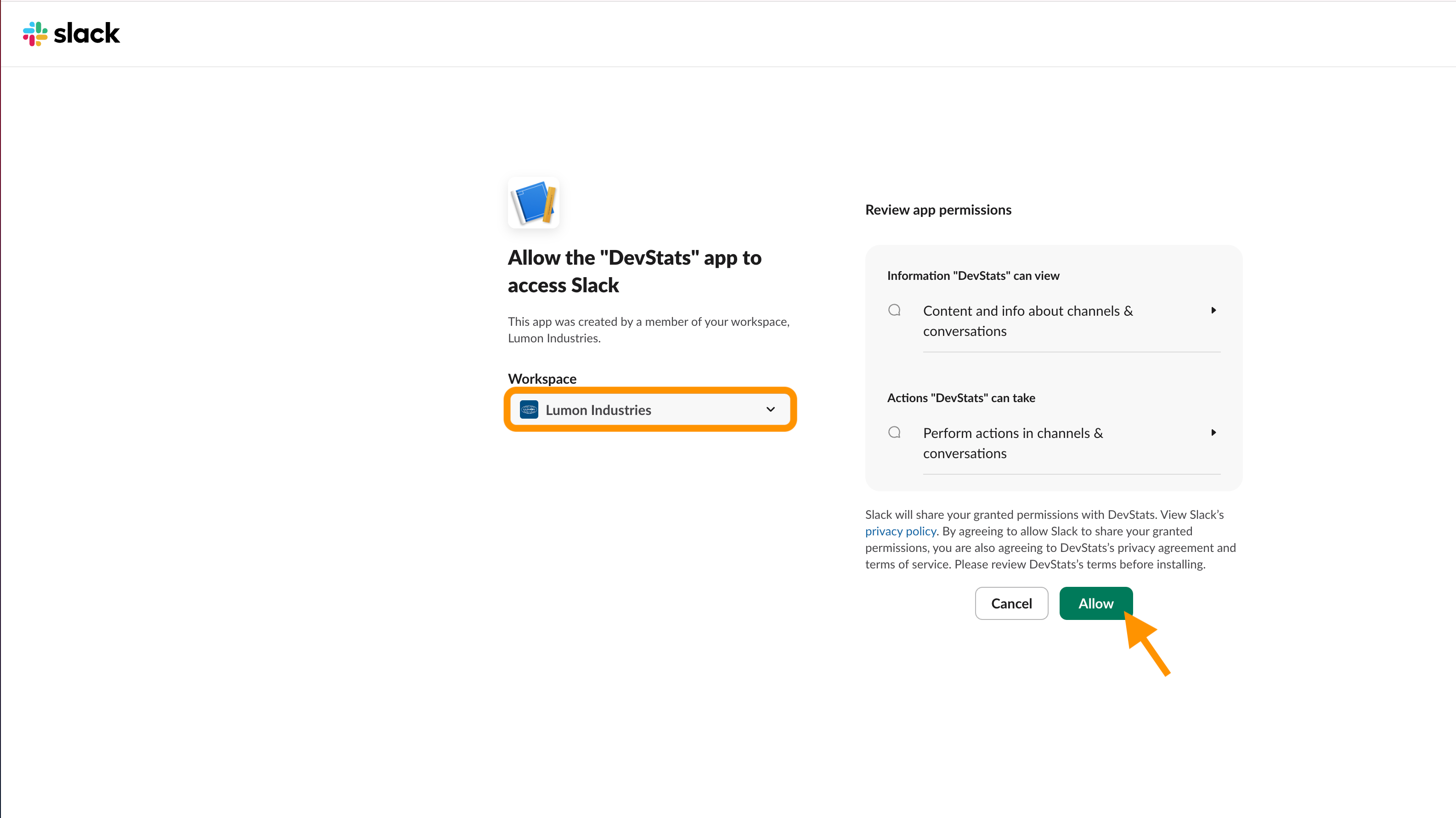
- Connection: Authorize DevStats to access your Slack workspace.
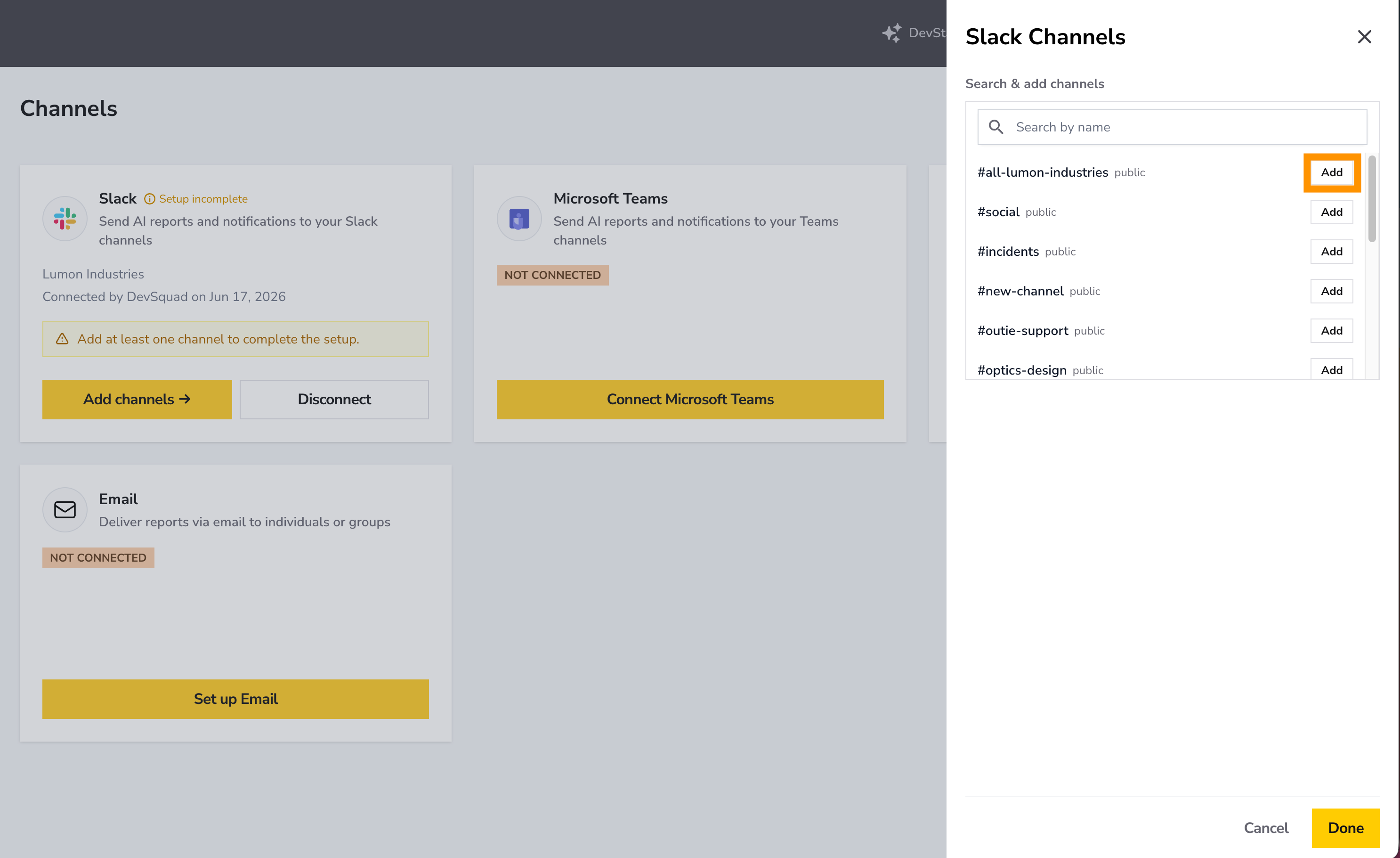
- Manage channels: Select which Slack channels receive reports and notifications.
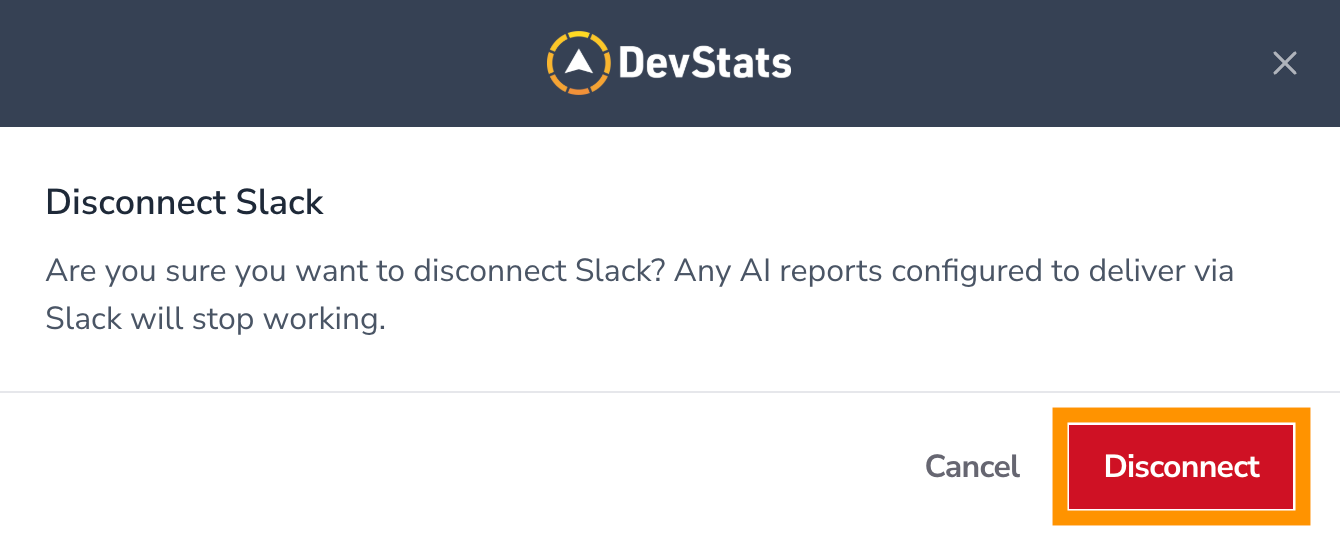
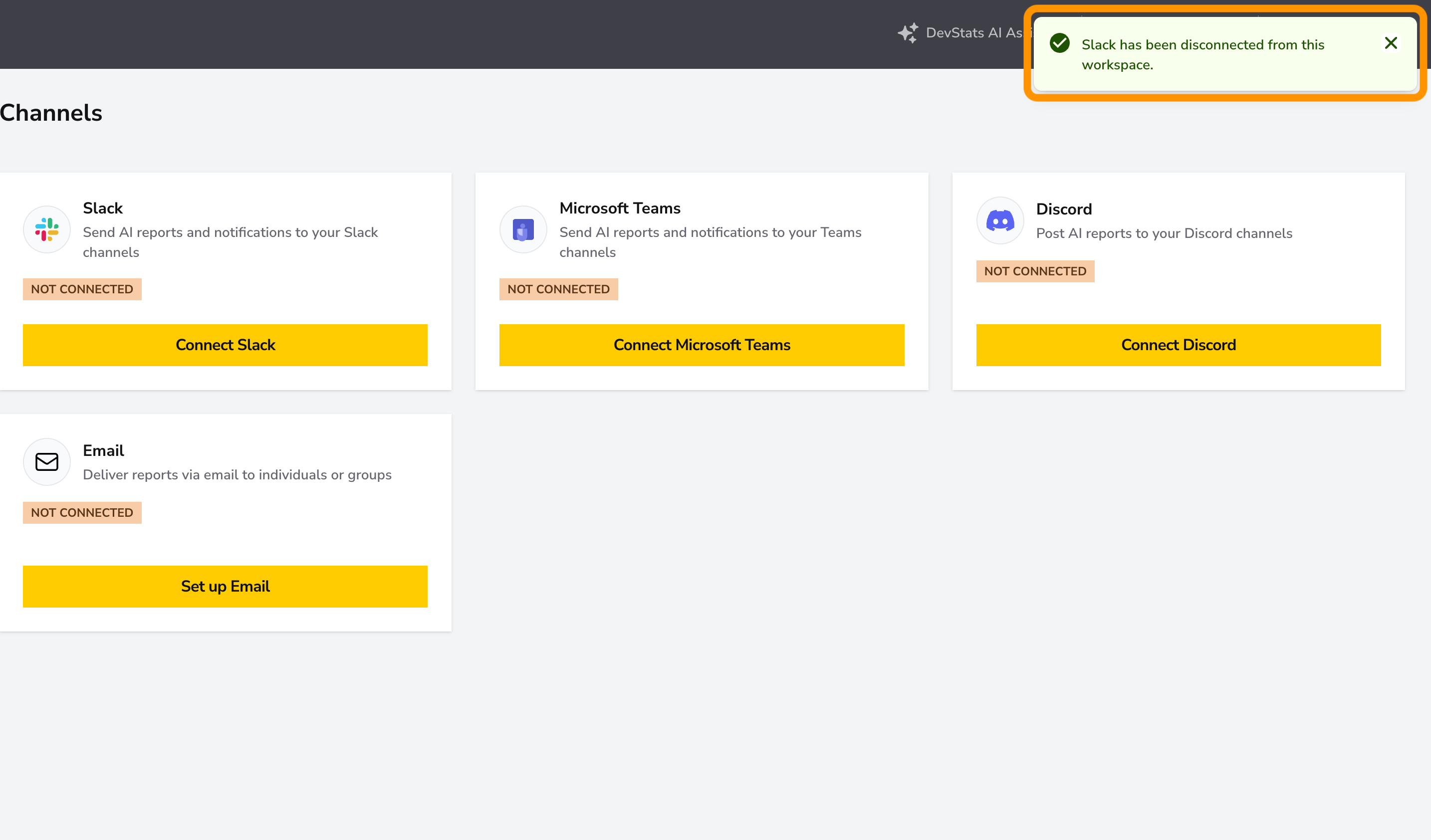
- Disconnect: Removes the Slack integration and stops all deliveries to Slack.
Connecting Slack
Managing Slack channels
Microsoft Teams
Send AI reports and notifications to selected Teams channels.
- Connection: Authorize DevStats to access your Microsoft Teams workspace.
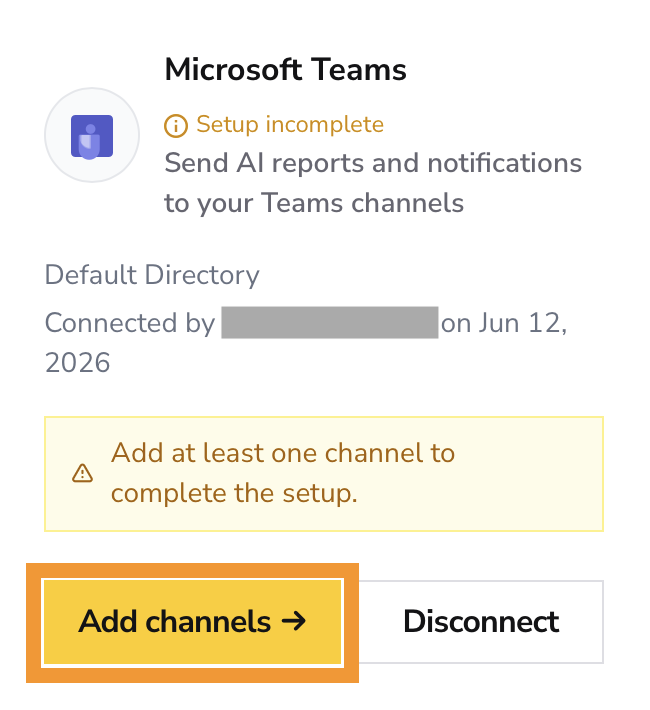
- Setup incomplete state: Appears when authorization is pending or incomplete.
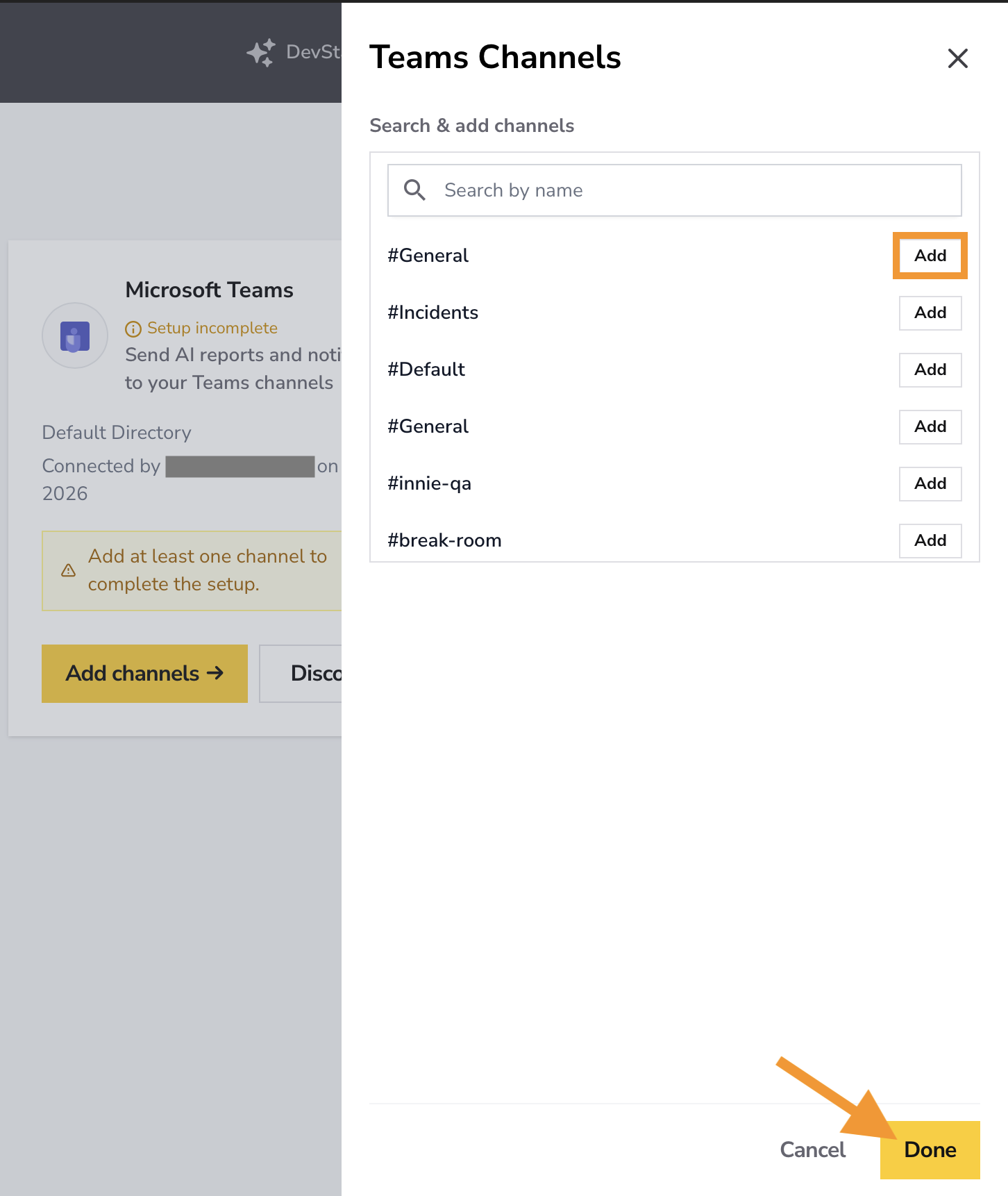
- Add channels: Select Teams channels after completing setup.
- Disconnect: Removes the Teams integration.
Discord
Post AI reports to selected Discord channels.
- Connection: Authorize DevStats to post to your Discord server.
- Manage channels: Select which Discord channels receive reports.
- Disconnect: Removes the Discord integration.
Deliver reports by email to individuals or groups.
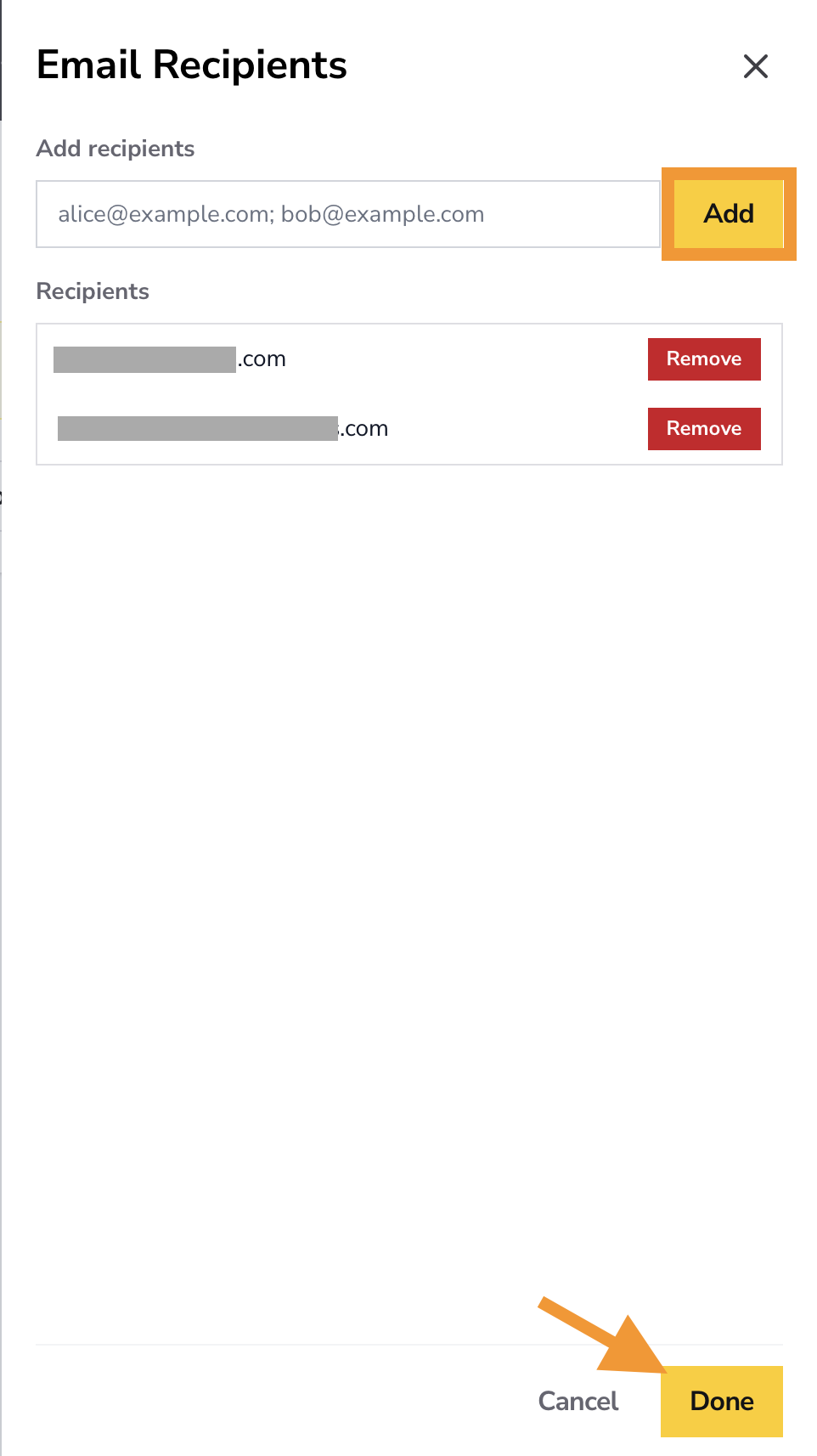
- Manage recipients: Add or remove email addresses that receive reports.
- Disconnect: Removes the email delivery option.
Statuses
| Status | Meaning |
|---|---|
| Connected | The integration is active and ready to deliver messages. |
| Setup incomplete | Authorization is pending or required configuration is missing. Complete setup to activate the channel. |
Managing destinations
Different delivery methods use different actions:
| Action | Applies to | What it does |
|---|---|---|
| Manage channels | Slack, Teams, Discord | View and edit which channels receive messages. |
| Add channels | Teams (setup incomplete state) | Complete authorization and select channels. |
| Manage recipients | View and edit the list of email addresses receiving reports. |
Disconnecting a delivery method
Selecting Disconnect removes the integration from your workspace:
- Active AI reports using this channel will switch to in-app notifications.
- No further messages will be sent to the disconnected destination.
- You can reconnect the same channel type later if needed.
Recommended setup workflow
Follow these steps to configure your delivery channels:
- Navigate to Channels at Settings > Workspace Settings > Channels.
- Review available integrations — Slack, Teams, Discord, and Email cards are displayed.
- Connect the channels your team uses — authorize each integration you need.
- Select destinations — choose specific channels or add email recipients.
- Verify the status shows Connected for each active integration.
- Test delivery by creating a test AI report and selecting the connected channel.
Troubleshooting
| Issue | Guidance |
|---|---|
| Setup incomplete status | Complete the authorization flow for the integration. Check that you have admin permissions in the external workspace. |
| Channel not appearing in AI Reports | Verify the channel shows Connected status. Only connected channels appear as delivery options. |
| Messages not arriving | Confirm the destination channel or email address is correctly configured. Check spam folders for email delivery. |
| Cannot disconnect | Ensure you have workspace admin permissions. Contact your workspace owner if the option is unavailable. |