To get the most out of the Allocation Report, you can configure how issues are categorized.
By default, the report groups issues into four categories:
- Roadmap – work tied to planned product delivery (e.g., Feature, Task).
- Unplanned / Opportunities – unexpected or opportunistic work (e.g., User Story).
- Maintenance Planned – scheduled improvements or upkeep (e.g., Test, Issue).
- Maintenance Unplanned – unplanned improvements (e.g., Bug).
Why Configure?
Every team uses slightly different naming conventions. Customizing these mappings ensures that your report reflects the actual way your team labels and tracks issues.
For example, if your team uses labels like Incident instead of Bug, you can map it under Maintenance Unplanned so it’s tracked correctly.
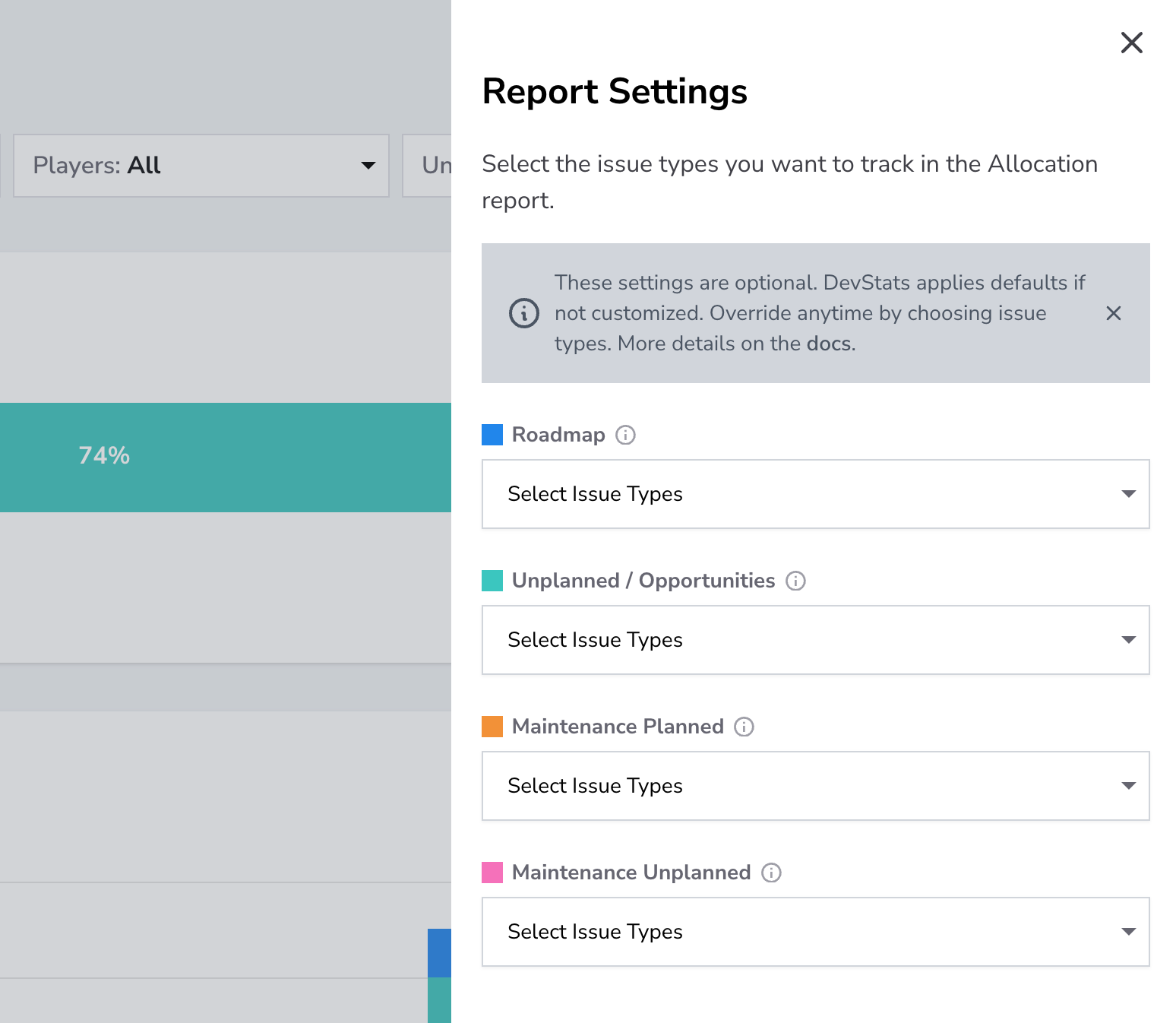
Steps to Configure
- Open Report Settings
- Go to the Allocation Report.
- Click the settings sidebar.
- Map Labels to Categories
- For each category (Roadmap, Unplanned / Opportunities, Maintenance Planned, Maintenance Unplanned), add the issue types or labels your team uses.
- Example: Add Story to Roadmap, or Incident to Maintenance Unplanned.
- Review Your Configuration
- Check that your selections cover all the issue types your team uses.
- Ensure that categories match your team’s workflow.
- Save- Click Save to apply changes.
- The report updates automatically to reflect your configuration.