An investment model defines the categories used to group work in the Engineering Investment report. Keep Balance for its four fixed categories, or create a custom model with categories that fit your team's work. Workspace owners and administrators can create and manage models.
Create the model
- Open Settings → Engineering Investment.
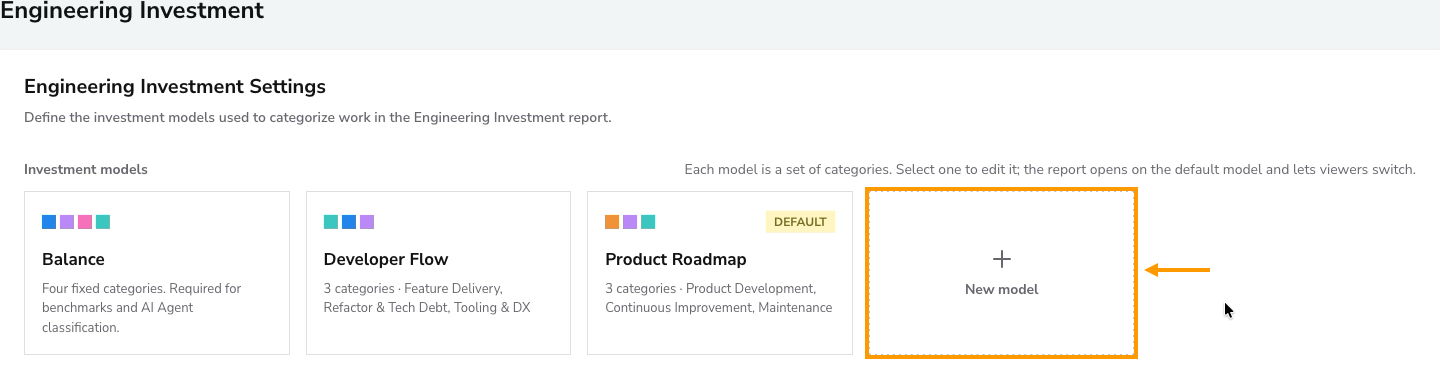
- Under Investment models, select New model. The editor starts with two empty categories.
- Optionally enter a descriptive Model name.
- Give each category a unique name, choose its color, and select the issue types that belong to it. Keep at least two categories.
- Use Add category for additional groups. Drag the handle beside a category to change the order shown in the report.
- Click Save Settings to create the model. Selecting New model alone does not save it.
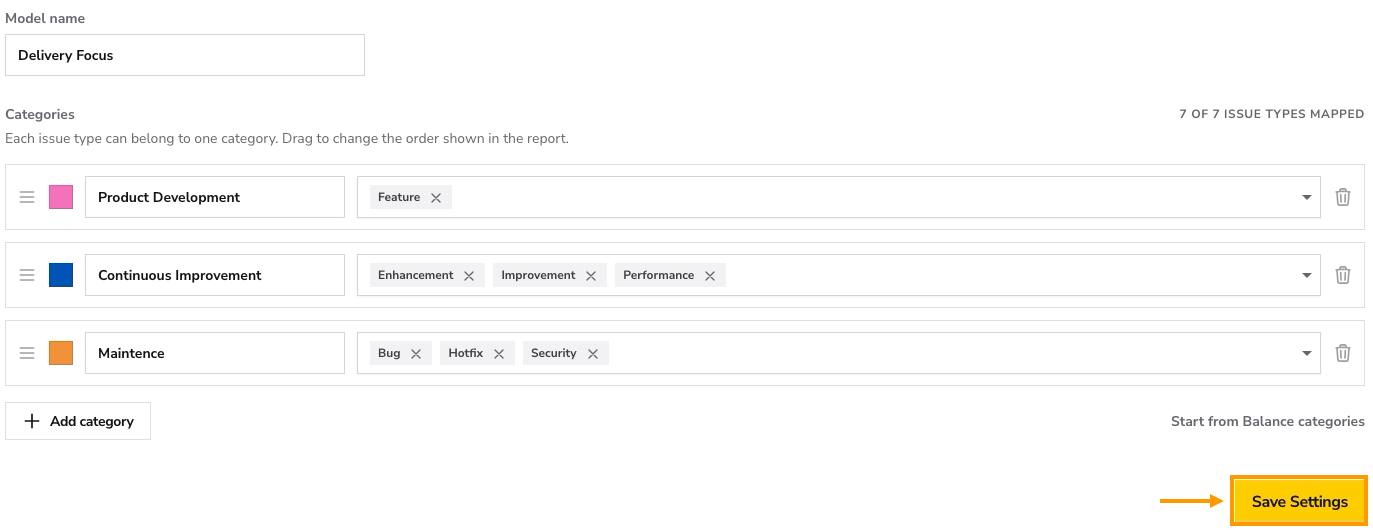
Each issue type can belong to only one category within the model. To move an assigned issue type, remove it from its current category first, then select it in the destination category. Review the mapped issue-type count and the warning about uncategorized types before saving.
To start with the existing Balance mappings, use Start from Balance categories. This replaces the categories and issue-type selections currently in the editor; confirm the replacement when prompted.
Use the model in the report
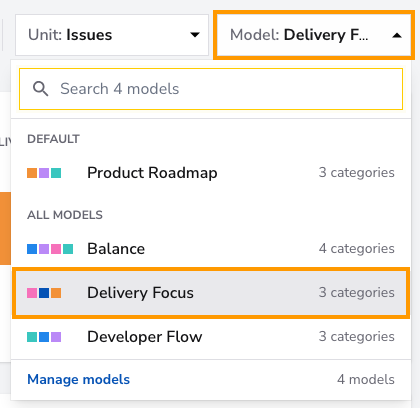
Open the Engineering Investment report and choose the saved model in the Model filter. This selection applies to your user in the current workspace.
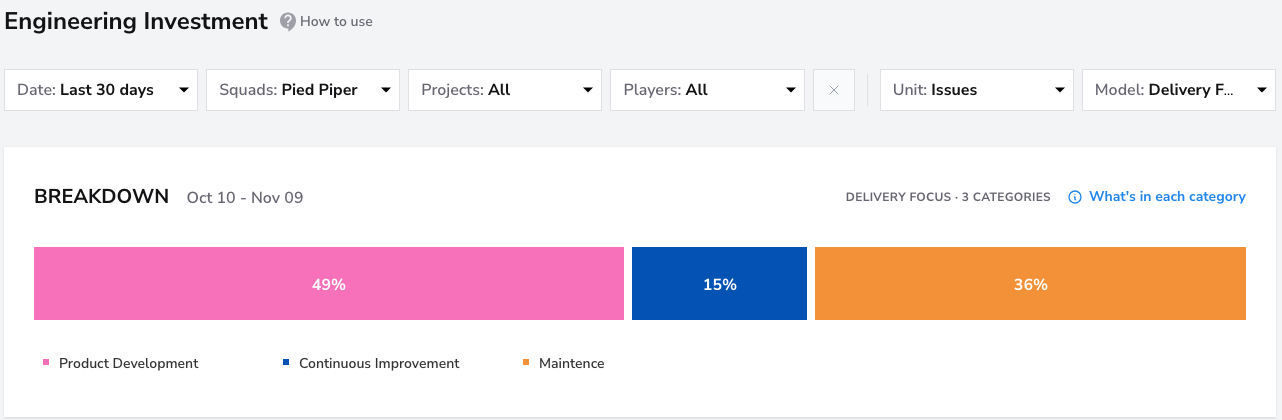
The report groups work using the selected model’s categories.
Creating a model does not make it the workspace default. To change that default, select the saved model in Settings → Engineering Investment and click Set as default. The default is used when a viewer has no saved model selection.
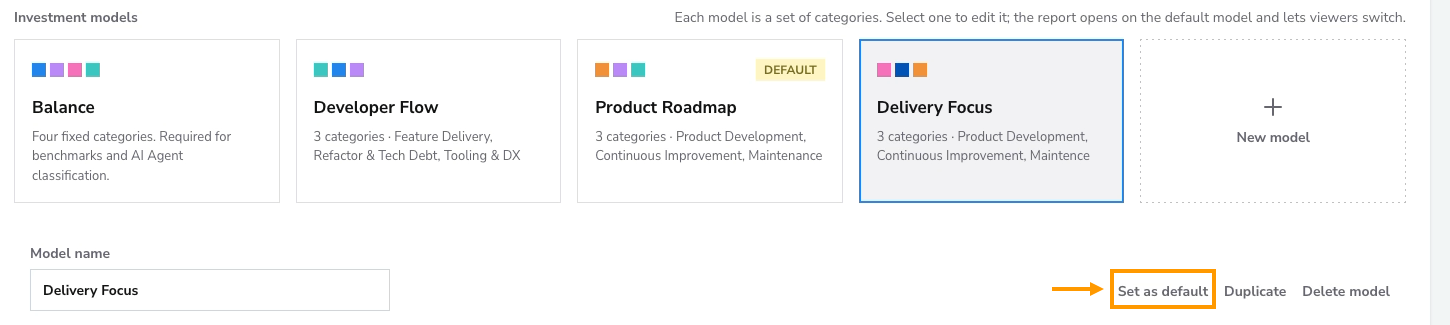
Manage existing models
Select a model in the grid to edit it, then click Save Settings. Use Duplicate to copy an existing model or Delete model to delete it.