Overview
Connect Sonar (SonarQube) to DevStats to bring your code quality data into the Code Quality report: bugs, vulnerabilities, code smells, test coverage and duplications, Sonar's A to E ratings, and the issues introduced in each period.
Before You Start
- Linked repositories: DevStats links each Sonar project to a repository. In Sonar, the project must be bound to a GitHub, GitLab, Bitbucket Cloud or Azure DevOps repository (Project Settings > DevOps Platform Integration), and that repository must already be integrated in DevStats. Projects that do not meet both conditions are not listed.
- Base URL: the address of your Sonar server, for example
https://sonarqube.example.com. It must be a public address that DevStats can reach. - User token: a Sonar user token, created in Sonar under My Account > Security. The token must belong to a user with administrator permissions: DevStats lists your projects and creates a webhook on each selected project.
Connecting Sonar
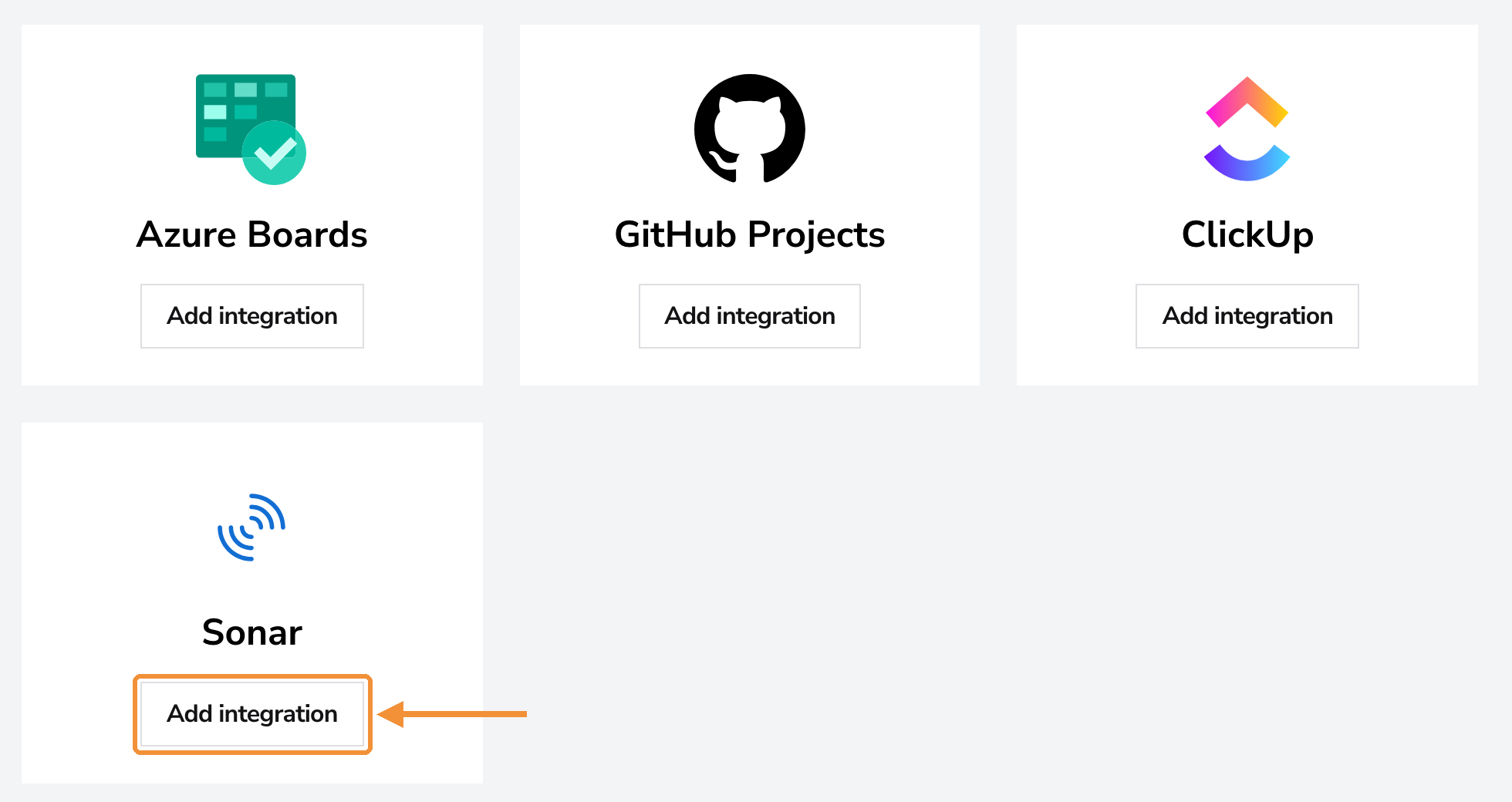
Step 1: Open your squad's Integrations page. On the Sonar card, click Add integration.
DevStats opens the Connect with Sonar screen. Click Authenticate with Sonar to start the setup.
If your workspace already has Sonar projects connected in another squad, the first step of the setup is Project source. Choose Add new projects from Sonar to continue with Step 2, or Choose projects that are already in DevStats to skip to the project selection in Step 3, without a new token.
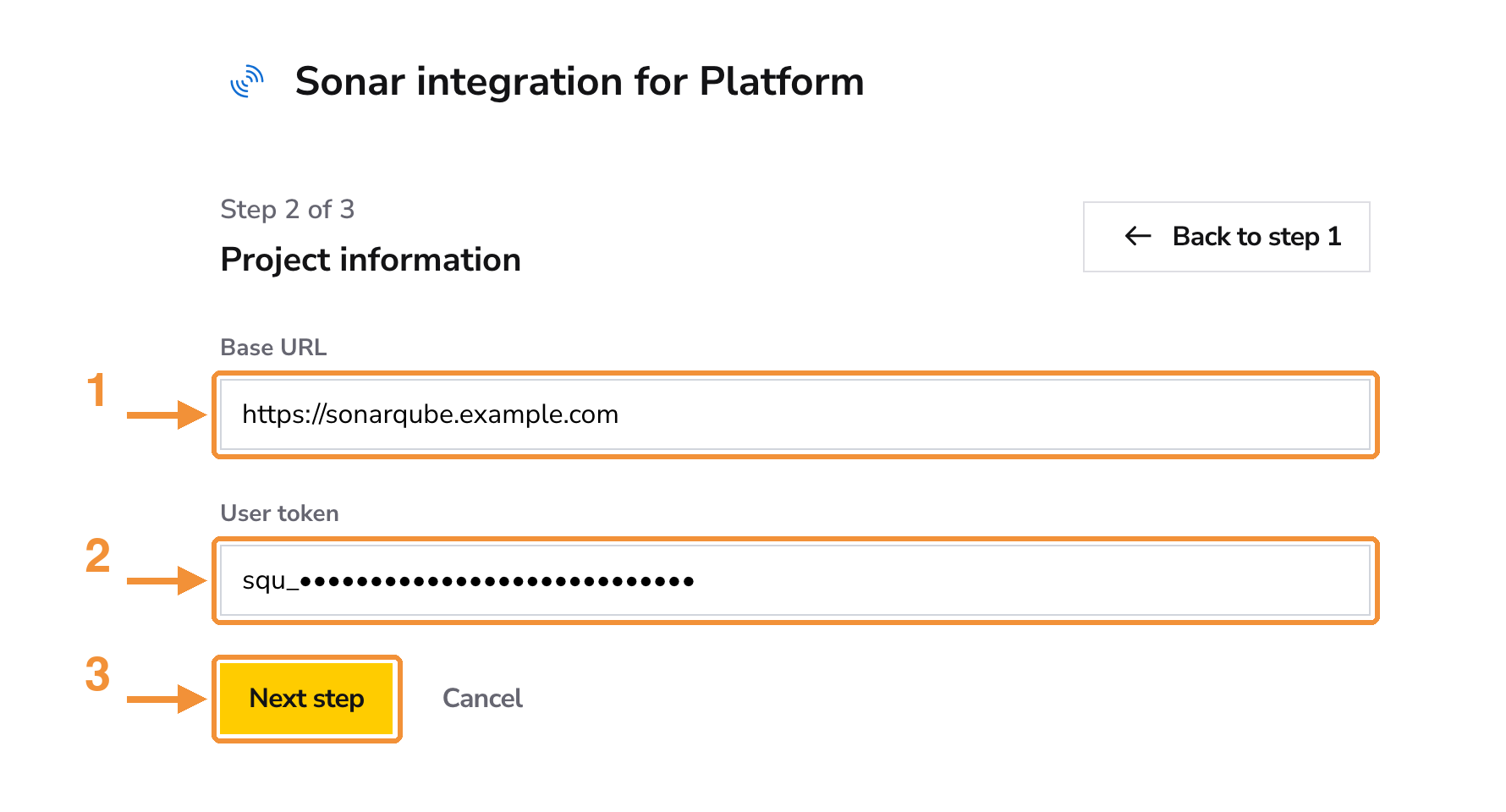
Step 2: On the Project information screen, enter the Base URL and User token, then click Next step. If DevStats cannot validate them, you will see "Invalid credentials. Please check and try again."
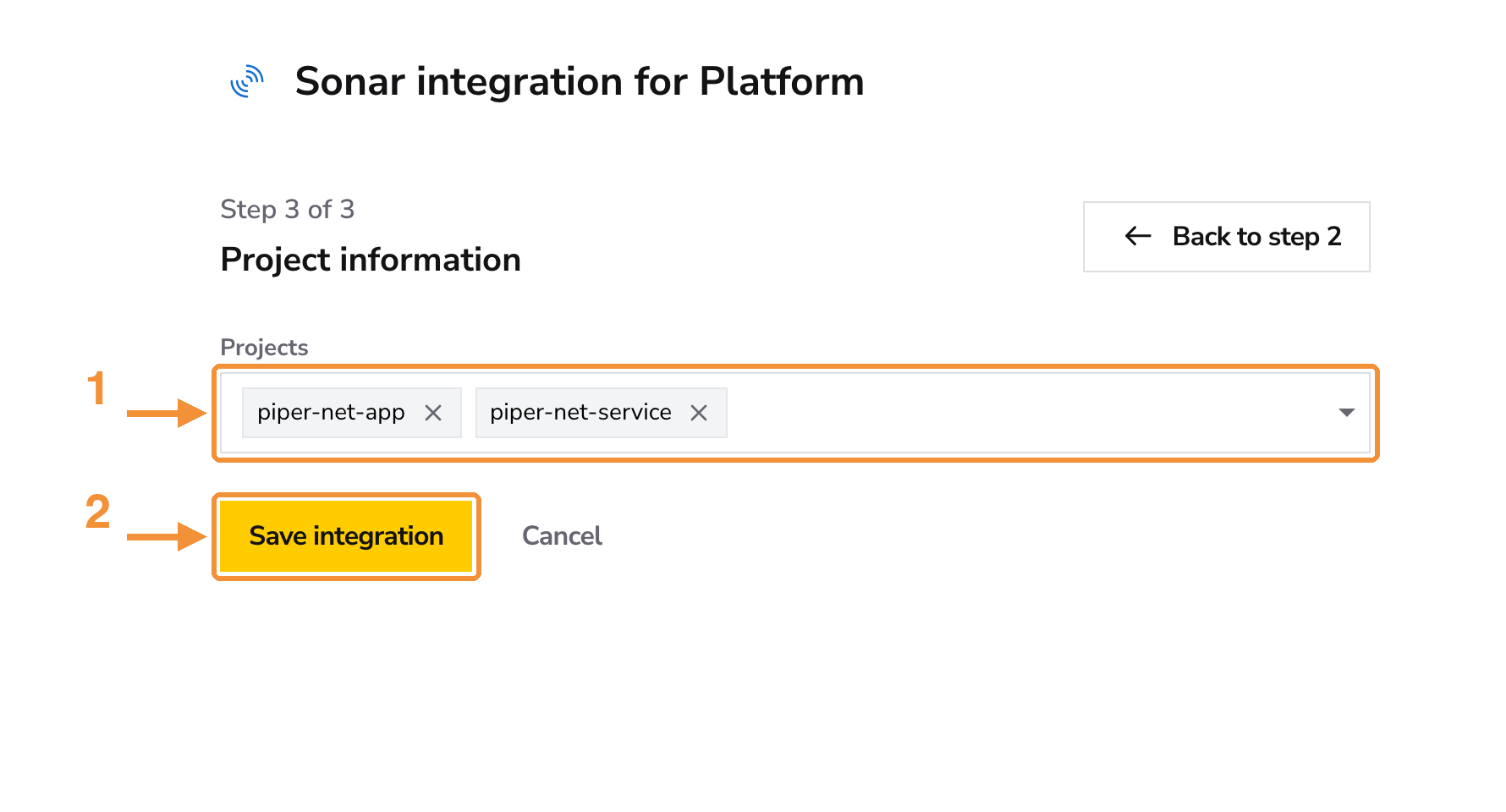
Step 3: In Projects, select the Sonar projects for this squad and click Save integration. If no project shows up, check the requirements in Before You Start.
What Happens Next
DevStats creates a webhook on each selected project and imports its metrics and issues history. When the import finishes, the Code Quality report shows your data instead of the sample data. After that, DevStats syncs the analysis data every day.
Sonar deletes closed issues after 30 days, so closed issues older than that cannot be imported. The card values and the chart use Sonar's full metrics history.
Managing the Integration
On the squad's Integrations page, open the settings of the Sonar card to see the Connected Projects. Click Edit Integration to add or remove projects. Delete Integration removes Sonar from this squad only: the projects stay available for other squads.